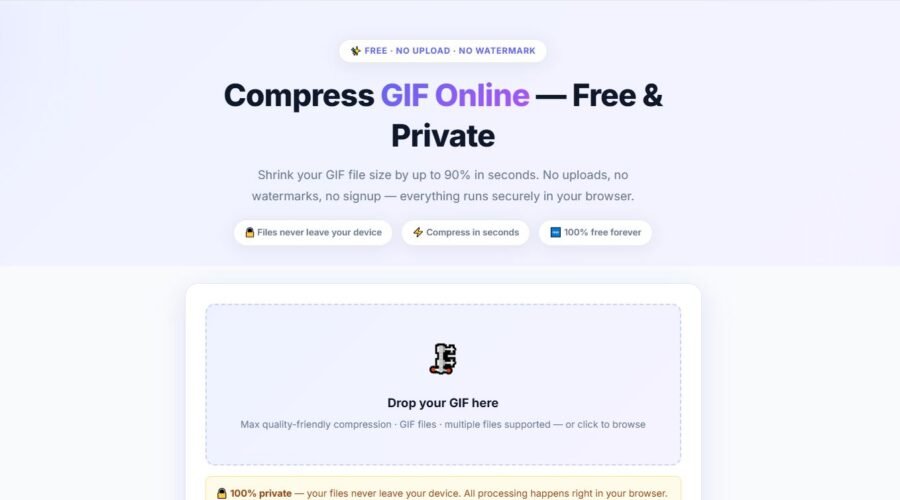
Animated GIFs are popular because they make websites, social media posts, tutorials, and online conversations more engaging. However, a high-quality GIF can quickly become a large file that takes too long to upload or load. This is where a reliable GIF compressor becomes useful.
A GIF compressor reduces the file size of an animated or static GIF while preserving as much visual quality as possible. It may optimize colors, resize the image, remove unnecessary frames, or use other compression methods to make the file lighter.
Compressing GIFs correctly can improve website performance, simplify file sharing, and reduce storage usage. The key is finding the right balance between a smaller file and an animation that still looks clean and professional.
What Is a GIF Compressor?
A GIF compressor is an online tool, desktop program, or software feature designed to reduce the size of GIF files. It analyzes the image or animation and removes unnecessary data that contributes to the file size without providing much visible value.
Unlike modern video formats, GIF files can become surprisingly large. Every animation contains a sequence of image frames, and each frame adds more data. Long animations, large dimensions, high frame rates, and complex colors can all increase the final file size.
Most compression tools allow users to upload a GIF and automatically optimize it. More advanced tools may provide controls for color reduction, frame removal, dimensions, compression level, and playback speed.
Why GIF Files Can Be So Large
A GIF animation is created by displaying multiple image frames in sequence. The more frames an animation contains, the more information must be stored. A ten-second GIF can therefore be much larger than a simple static image of the same dimensions.
Image dimensions also have a significant effect on size. A GIF measuring 1200 pixels wide contains far more visual information than one measuring 500 pixels wide. Large dimensions are often unnecessary when the animation will only appear in a small section of a webpage or social media post.
Color complexity is another important factor. The GIF format supports a palette of up to 256 colors per frame. Animations with gradients, shadows, detailed backgrounds, or photographic scenes can be harder to compress than simple graphics with flat colors.
How a GIF Compressor Reduces File Size
A GIF compressor can reduce the number of colors used in an animation. For example, an animation may appear almost identical with 128 colors instead of 256. Removing colors that are difficult for viewers to notice can significantly lower the size of the file.
Some tools also remove duplicate or unnecessary frames. If several frames contain almost the same visual information, the compressor may combine or eliminate them while maintaining smooth movement. Frame optimization is especially effective for screen recordings and simple animations.
Another common method is resizing. Reducing the width and height of a GIF decreases the amount of information stored in every frame. A compressor may also simplify metadata, optimize transparency, or apply lossy compression to create additional savings.
Lossless and Lossy GIF Compression
Lossless compression reduces file size without intentionally removing visible image information. It reorganizes data, removes unnecessary metadata, and optimizes the way the file is stored. The animation should generally look the same after lossless compression.
Lossy compression removes some visual information to achieve a greater reduction. It may simplify colors, merge similar areas, introduce mild dithering, or reduce frame details. A carefully selected lossy setting can make a GIF much smaller without causing an obvious decline in quality.
The right choice depends on how the GIF will be used. Lossless compression is suitable for logos, interface demonstrations, and detailed graphics. Lossy compression may be more practical for casual social media animations, reaction GIFs, or large files that must meet strict upload limits.
| Compression method | File-size reduction | Quality impact | Best use |
|---|---|---|---|
| Lossless optimization | Low to moderate | Usually unnoticeable | Logos and detailed graphics |
| Color reduction | Moderate | Minor at sensible settings | Illustrations and simple animations |
| Frame reduction | Moderate to high | Motion may become less smooth | Tutorials and screen recordings |
| Image resizing | High | Lower resolution | Websites and mobile content |
| Lossy compression | High | Depends on compression level | Social posts and large animations |
How to Use an Online GIF Compressor
Start by selecting a trusted GIF compressor and uploading the file you want to optimize. Before uploading private or sensitive content, review the tool’s privacy policy and find out whether uploaded files are automatically deleted after processing.
Choose an appropriate compression setting. If the tool provides a preview, begin with moderate compression and compare the result with the original animation. Check the text, colors, movement, transparency, and small details before downloading the compressed file.
After downloading it, confirm that the animation plays correctly on your intended platform. You should also compare the original and compressed file sizes. If the reduction is too small, try resizing the GIF, lowering its color count, or removing unnecessary frames.
How to Compress a GIF Without Losing Too Much Quality
The safest approach is to make smaller adjustments one at a time. Begin with lossless optimization before changing the dimensions, frame count, or colors. This may provide enough reduction without noticeably changing the animation.
If additional compression is required, reduce the color palette gradually. Simple GIFs often continue to look good with 128, 64, or even fewer colors. Photographic GIFs usually need more colors to avoid visible banding and rough transitions.
Resizing should be based on the GIF’s actual display size. There is little benefit in uploading a 1200-pixel-wide animation if it will appear at only 500 pixels wide. Matching the file dimensions to the intended display area can create major savings while keeping the GIF visually sharp.
Best GIF Compressor Settings
There is no single compression setting that works for every GIF. The ideal configuration depends on the animation’s length, dimensions, colors, motion, and purpose. A short reaction GIF can usually handle stronger compression than an interface tutorial containing small text.
For website content, focus on reducing dimensions and unnecessary frames first. These changes often deliver better results than extreme color reduction. Keeping text readable and important movements clear should take priority over achieving the smallest possible file.
For social media or messaging apps, moderate lossy compression is often acceptable because the animation may already be resized or recompressed by the platform. Always preview the final GIF because overly aggressive settings can create flickering, grainy colors, and uneven motion.
Benefits of Compressing GIF Files
Compressed GIFs load faster, which can make webpages feel more responsive. Visitors are less likely to wait for a large animation, especially when using a slower mobile connection. Faster media delivery can also improve the overall user experience.
Smaller files use less bandwidth and storage. This can be valuable for websites containing several animations, email campaigns with strict file limits, and teams that frequently exchange visual assets.
Compression also makes GIFs easier to upload across different platforms. Many content-management systems, forums, messaging services, and social networks impose file-size restrictions. Optimizing the file beforehand reduces the risk of failed uploads or unwanted automatic processing.
Common GIF Compression Mistakes
One common mistake is applying the highest compression level immediately. Although this produces a smaller file, it can also damage gradients, make text difficult to read, and create distracting visual artifacts. Compression should be tested gradually.
Another mistake is ignoring the number of frames. Users sometimes reduce image quality heavily when simply deleting repeated or unnecessary frames would produce a cleaner result. Trimming the beginning and end of an animation can also reduce its size.
Saving and recompressing the same GIF repeatedly can cause quality to decline. Keep the original file and create new compressed versions from that source. This makes it easier to compare different settings without accumulating unnecessary damage.
GIF Compression for Website Performance
Large GIFs can slow down pages, particularly when several animations load at the same time. Before publishing a GIF, determine whether animation is truly necessary and whether a more efficient format would offer better performance.
A compressed GIF can work well for short loops, simple graphics, badges, memes, and basic interface demonstrations. For longer or highly detailed animations, modern video formats may deliver much smaller files and better color quality.
Website owners should also consider lazy loading, responsive dimensions, and careful placement. Compression is valuable, but it works best as part of a broader performance strategy that prevents large media files from loading before visitors need them.
GIF Compressor Versus Video Conversion
GIF is widely supported and easy to share, but it is not always the most efficient option. Video formats can store complex motion and photographic content more efficiently, often creating smaller files with better visual quality.
Converting a GIF to video can be useful for website banners, product demonstrations, and longer animations. However, video files may require playback controls, autoplay settings, looping attributes, and platform-specific compatibility checks.
A GIF compressor is still the better choice when GIF format is required by the destination platform or when simple automatic looping is important. The decision should be based on compatibility, file size, image quality, and the intended user experience.
How to Choose the Right GIF Compressor
A good GIF compressor should offer a clear preview, useful quality settings, and accurate file-size information. It should also preserve animation timing and transparency when those features are present in the original file.
Privacy is equally important. If a tool processes files online, check how long uploads are stored and whether they are deleted automatically. Desktop software may be preferable for confidential animations because files can remain on the local device.
Ease of use matters, but advanced controls can be valuable for professional work. Features such as batch compression, frame editing, resizing, color management, and output comparison can save time when optimizing multiple GIFs.
Final Thoughts
A GIF compressor is a practical solution for reducing oversized animations while keeping them attractive and functional. It can improve loading speed, meet upload restrictions, reduce storage needs, and make animated content easier to share.
The best results usually come from combining several moderate adjustments. Lossless optimization, sensible resizing, color reduction, and frame removal can reduce file size without making the animation look heavily compressed.
Always keep the original GIF and preview every optimized version before publishing it. A smaller file is useful, but visual clarity, smooth playback, and readability should remain the main priorities.
Frequently Asked Questions
1. What does a GIF compressor do?
A GIF compressor reduces the file size of a GIF by optimizing its colors, frames, dimensions, metadata, or image data. The final animation should require less storage and load more quickly.
2. Can I compress a GIF without losing quality?
Yes, lossless compression can reduce file size without intentionally lowering visible quality. However, larger reductions may require some changes to colors, frames, or dimensions.
3. Why is my GIF file still large after compression?
The GIF may have large dimensions, too many frames, a long duration, or highly detailed imagery. Resizing it or reducing its frame count may provide a greater reduction.
4. Does GIF compression change animation speed?
Compression should not normally change the playback speed unless frames are removed or timing settings are adjusted. Always preview the compressed file to confirm that it plays correctly.
5. Is it safe to use an online GIF compressor?
It can be safe, but policies vary between services. Avoid uploading confidential content unless the tool clearly explains how files are processed, protected, and deleted.
6. Should I use a GIF or a video file?
Use a GIF for short, simple, automatically looping animations when broad compatibility is important. Consider video for long, detailed, or photographic animations because it can offer better quality at a smaller size.
Also like This: How to Compress a GIF Without Losing Quality (2026 Guide)
Leave a Reply