You found the perfect GIF. You hit send. Discord replies with the most annoying sentence in the app: “File cannot be larger than 8.00 MB.” Without Nitro, Discord’s upload cap means heavy GIFs simply don’t go through — and GIFs get heavy fast. Here’s a practical, ordered playbook for getting any GIF under the limit while keeping it looking good in chat.
Know Your Limits First
| Discord tier | Upload limit |
| Free | 8 MB (10 MB on some clients) |
| Nitro Basic | 50 MB |
| Nitro | 500 MB |
Also useful: Discord emotes must be under 256 KB (128×128px is standard), and stickers under 512 KB at 320×320px. The techniques below scale down to those tiny targets too.
Method 1: Compress It (Start Here)
Run your GIF through a GIF compressor at Medium level. For most files this alone removes 50–80% of the size — a 15 MB GIF routinely lands around 4–6 MB, comfortably under the cap, with no visible quality change in a chat window. If Medium isn’t enough, step up to Strong; at Discord display sizes, even aggressive compression is hard to spot. Tip: our compressor also has a Target Size option — type 8000 KB and it finds the right settings automatically.
Method 2: Resize It (the Math Is on Your Side)
Discord displays chat GIFs small — roughly 400px wide inline. Sending a 900px GIF wastes megabytes on pixels nobody sees. Resize to 480px wide and file size drops by roughly the square of the ratio: a 900→480px resize cuts about 70% of the weight. Resize first, then compress, and almost anything fits under 8 MB.
Method 3: Trim the Fat
Every frame costs kilobytes. If your GIF has a slow build-up, lingering ending, or repeats its loop twice, trim it to the essential moment. Halving the frame count halves the file — and tighter GIFs land better comedically anyway.
Method 4: Cut the Colors
Memes, cartoons, and screen captures rarely need 256 colors. Reducing to 128 or 64 colors (an option in our compressor) shaves another 20–40% with little visible change for flat-color content. Skip this one for photographic GIFs, where color banding shows.
Method 5: The Nuclear Option — Send It as MP4
Here’s the trick veterans use: Discord plays MP4 videos inline with autoplay-on-hover, looking almost identical to GIFs. Converting GIF to MP4 makes the file 90–95% smaller — a 30 MB GIF becomes a ~1.5 MB MP4 that sails under the free limit with room to spare. The only difference: it shows a play state on mobile rather than perpetually looping. For big, long or HD clips, this is by far the best option.
The Complete Pipeline for Stubborn GIFs
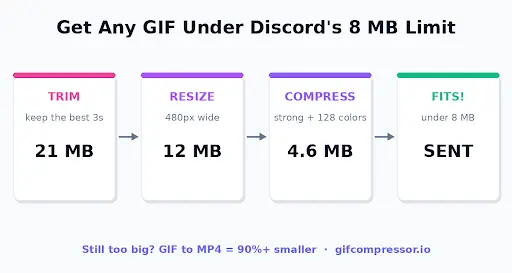
- Trim to the essential 2–5 seconds.
- Resize to 480px wide (360px if desperate).
- Compress at Strong with 128 colors.
- Still over 8 MB? Convert to MP4 — game over, it fits.
Every tool linked above is free, runs entirely in your browser (your GIFs never get uploaded to anyone’s server), and takes seconds. No more 8 MB wall.
Bonus: Making Emotes and Stickers Fit
For the 256 KB emote limit: resize to exactly 128×128, trim to under ~20 frames, reduce to 64 colors and compress at Strong. For 512 KB stickers at 320×320, the same recipe with slightly gentler settings does the job.
Leave a Reply